Editorial notes
Streamlabs Desktop at a glance
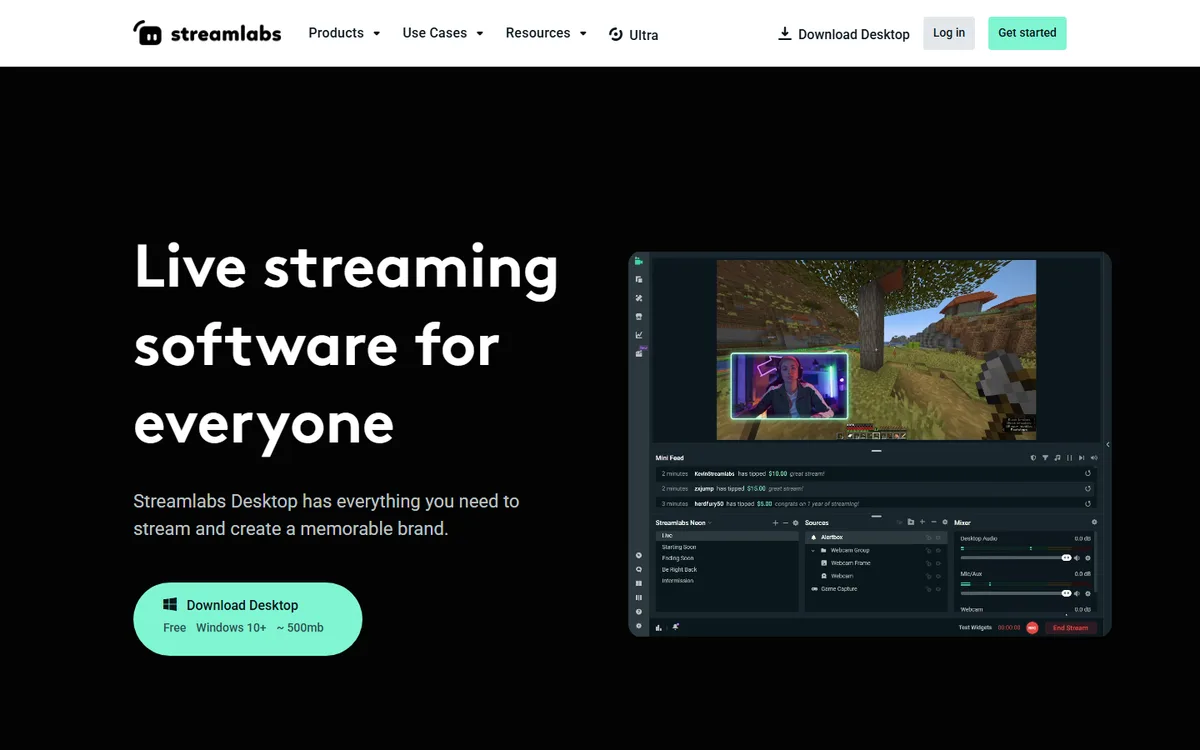
Streamlabs Desktop is a local creator-production application. It captures supplied webcam, game, desktop, music, microphone, and other sources, then lets an operator arrange scenes and send the output live or record it. It is built on the OBS engine but packages alerts, widgets, overlays, chat, and creator services into a more guided desktop experience. It is not a browser studio, a hosted encoder, or a model that generates a live video program from text.
The official desktop page says core tools are free and identifies scenes, recording, alerts, overlays, widgets, guest cameras, and Dual Output. The program’s AI-labelled functions, such as highlights or automations, are assistance around a supplied stream. They do not change the fundamental classification: Streamlabs Desktop is real-time production infrastructure that captures, mixes, encodes, and distributes material provided by a creator.
Desktop production and destinations
A producer builds a scene from sources, sets up audio, adds alerts or overlays, and clicks Go Live. The official documentation describes local recording separately from a live broadcast and allows recording path, quality, format, and audio-track selection. This is useful when a creator needs an editable master as well as a public stream. Test local disk space, codec choice, source audio, and machine load; simultaneous streaming and recording can need more headroom than either activity alone.
Streamlabs Desktop supports common destinations and custom RTMP connections. Its current official page says a creator can go live to one horizontal and one vertical output free through Dual Output, while expanded multistreaming is an Ultra feature. The multistream guide explains that Streamlabs can handle cloud distribution, but the entitlement and destination count depend on the selected plan. Do not treat the free dual-format path as unlimited multistreaming or assume a destination allows the chosen title, bitrate, aspect ratio, or account connection.
Collab Cam can invite a guest or additional camera through a link. That is helpful for a light interview or co-host path, but it is not proof of a full browser production studio with the same guest workflow as StreamYard. Rehearse guest permissions, headphones, upstream stability, audio mix, and a fallback source. The desktop operator remains responsible for the composed program.
Automation, AI, and limitations
The desktop page advertises Automations that read gameplay in real time and can trigger visuals, scene switches, clipping, and replays. This is event-driven show automation, not generative video. It can reduce repetitive manual actions, but it must be tested against the exact game, scene names, timing, and audience-safety rules. A false trigger is still a live production mistake.
The official materials also describe highlights and overlays. Those features support branding and post-stream reuse; they do not produce an original broadcast scene by themselves. Streamlabs should not be listed as a real-time generative-video tool just because it promotes AI or automation labels.
No public developer documentation establishing a production API was found in the reviewed sources, so API availability is unknown rather than inferred from integrations, widgets, or cloud distribution. Choose Streamlabs Desktop for an integrated creator desktop workflow; choose OBS Studio for a more modular local stack, or Restream and StreamYard when browser production or managed relay is the goal. Test CPU/GPU capacity, local recording, destination access, multistream entitlement, and automation failure modes.
Document fallback scenes and an operator handoff before airtime.
 AI Live Video